Este artigo ainda não está disponível em Português. Exibindo versão em inglês.
How to Add an Expert Advisor (EA) to MetaTrader 5
 LHFX
LHFX
An Expert Advisor (EA) is a program that runs inside MetaTrader 5 and trades for you based on rules someone has coded. Once it is attached to a chart and Algo Trading is switched on, it can open and manage positions without you clicking a thing. If you have just downloaded an EA and you are staring at MT5 wondering where it goes, this guide walks you through it in five steps.
New to the idea of automated trading? Start with our overview of Expert Advisors on MetaTrader 5, then come back here to install one.
Before you start
Have these three things ready:
The EA file itself, which ends in .ex5 (a compiled EA, ready to run) or .mq5 (the source code, which MT5 compiles for you).
A copy of MetaTrader 5 installed on your desktop. Adding an EA is a desktop job; you cannot install one from the mobile app.
A chart open for the symbol you want the EA to trade.
One habit worth keeping: test any new EA on a demo account first, so you can watch how it behaves before it touches real money.
Step 1: Drop the EA file into the Experts folder
MT5 only loads EAs that live inside its data folder. To find it, open MT5 and go to File > Open Data Folder. In the window that opens, go into MQL5 > Experts and copy your .ex5 or .mq5 file into that folder.
Step 2: Refresh the Navigator
Back in MT5, look at the Navigator panel on the left (press Ctrl+N if it is hidden). Right click Expert Advisors and choose Refresh, or simply close and reopen MT5. Your EA now appears in the list, ready to use.
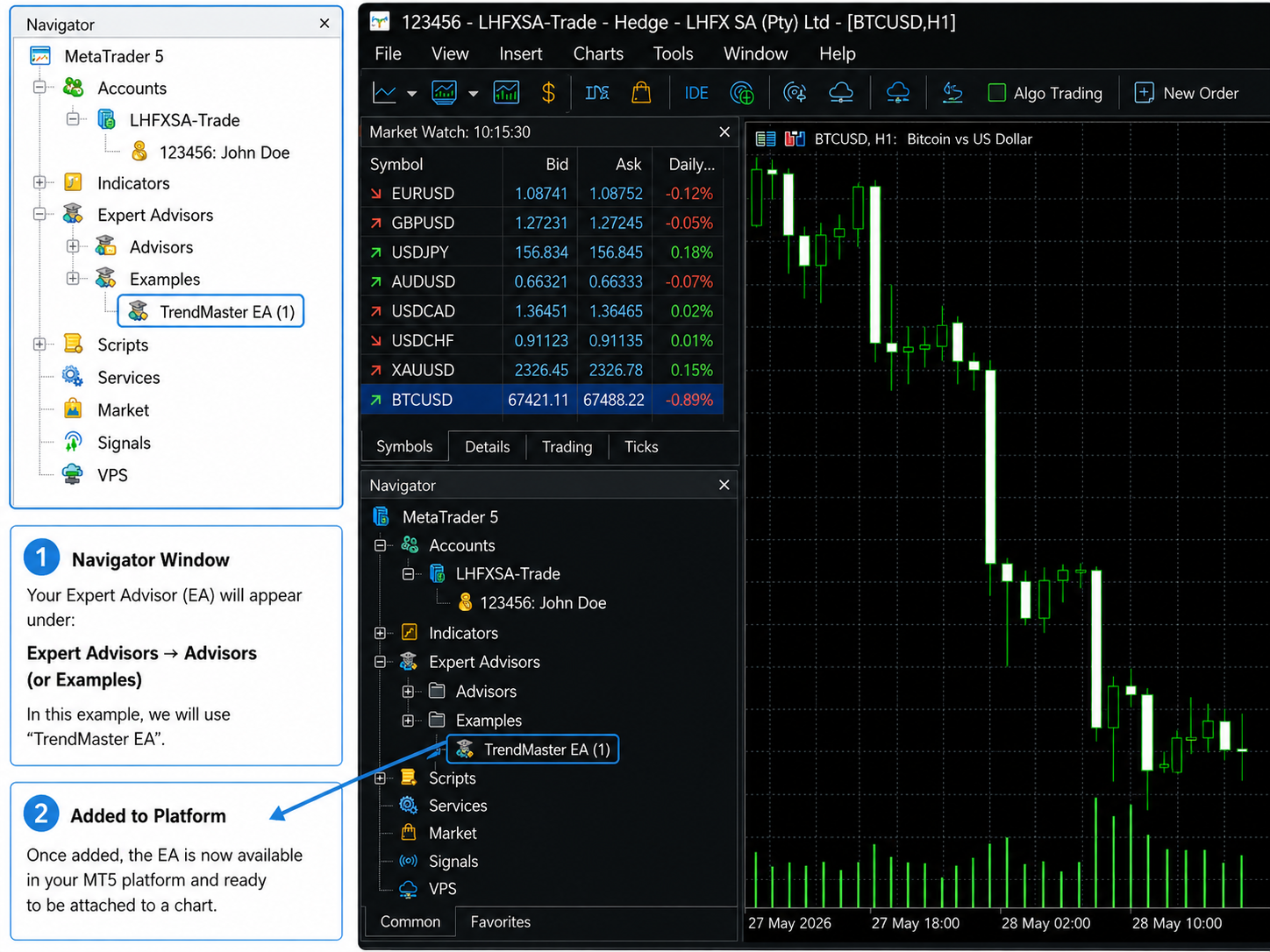
Step 3: Switch on Algo Trading
Find the Algo Trading button in the top toolbar and click it once so it is highlighted. This is the master switch. If it is off, no EA can place a trade, no matter how it is set up.
Step 4: Attach the EA to a chart
Double click your EA in the Navigator, or drag it onto the chart you want it to run on. A settings window opens. On the Common tab, tick Allow Algo Trading. Set any parameters you need on the Inputs tab, then click OK.
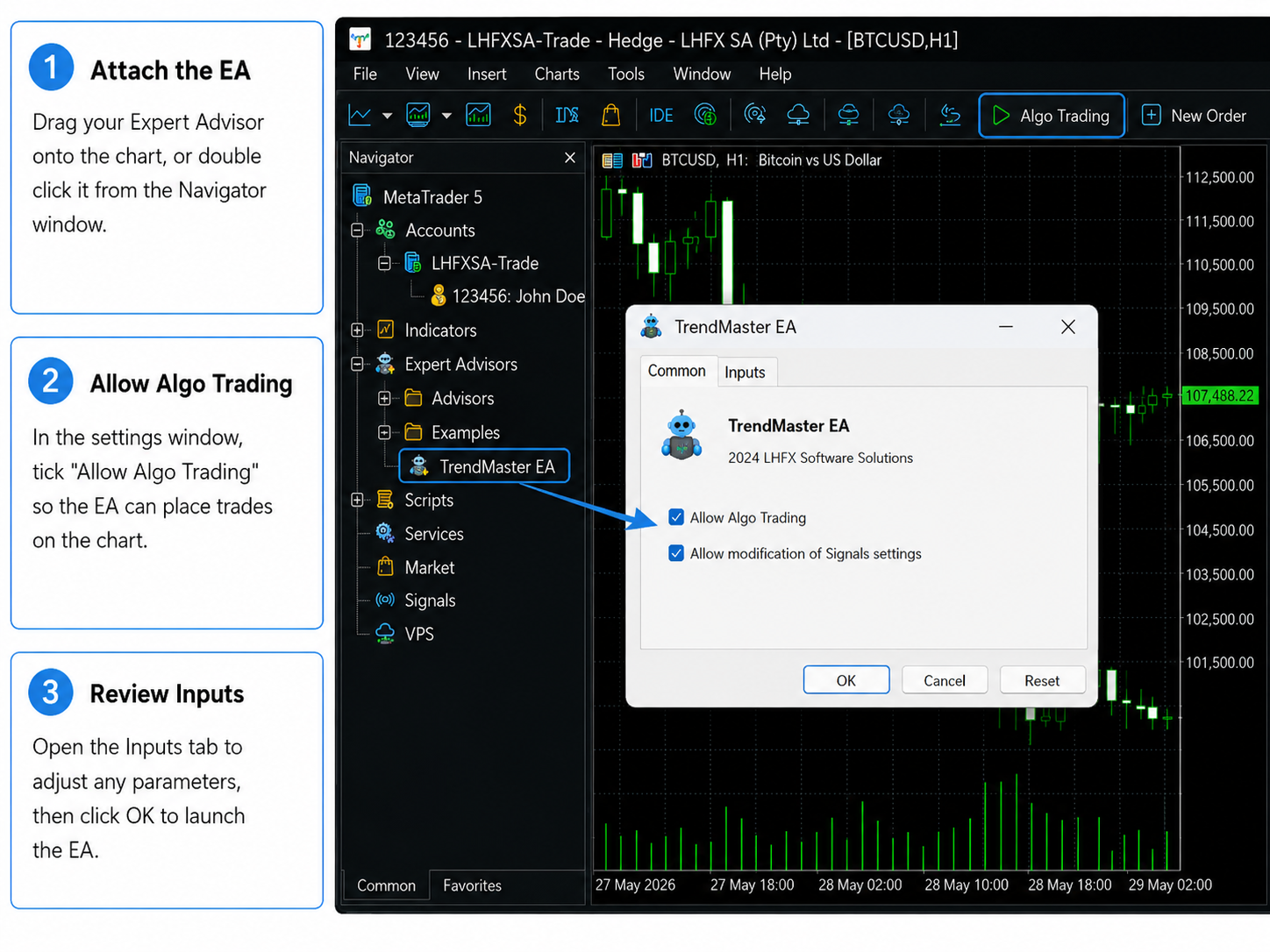
Step 5: Check that it is running
Look at the top right corner of the chart. A small smiley face means the EA is live and Algo Trading is on. A sad face, or a small stop icon, means something is switched off, usually the Algo Trading button from Step 3. Once you see the smiley, your EA is working.
A few things to keep in mind
One EA per chart. MT5 runs a single EA on each chart, so open a separate chart for each strategy you want to automate.
Keep the platform on. An EA only runs while MT5 is open and connected. If you want it trading around the clock, a VPS keeps it running even when your computer is off.
Know what it does. An EA follows its code exactly, including in fast or thin markets. Test on a demo, start small, and never run one you do not understand.
Frequently asked questions
How do I activate an Expert Advisor in MT5?
Two switches have to be on. First, click the Algo Trading button in the toolbar so it is highlighted. Then attach the EA to a chart and tick Allow Algo Trading in the window that opens. When both are on, you will see a smiley face in the top right corner of the chart.
Why is my Expert Advisor not trading?
The usual cause is the Algo Trading button being switched off, which shows as a sad face on the chart. Other things to check: the EA is attached to the right symbol and timeframe, the market is open, and your account has enough free margin for the trade size the EA uses.
Can I run an Expert Advisor on the MT5 mobile app?
No. EAs only run in the MetaTrader 5 desktop terminal. The mobile and web versions cannot run them. If you want an EA trading while your computer is off, run it on a VPS instead.
Where do Expert Advisor files go in MT5?
Inside the data folder, under MQL5 > Experts. Open it from File > Open Data Folder in MT5, then refresh the Navigator so the EA shows up.
Ready to put an EA to work? Open an LHFX account to trade on MetaTrader 5, or browse more guides in our Learn library.